
Closed for the holidays? Check your website and Google Maps hours.
Set the holiday dates on your website, then change your Google Maps listing separately. Check both as a guest.
Updated on
Tell guests when you are closed before they set out. Add the holiday dates in HuskIT and update your website. Change your Google Maps listing separately so both places agree.
For Minh, a family restaurant owner. See Opening hours.
Before you start
Agree the dates with your team. Have the exact hours and business time zone ready. You need Owner access to HuskIT and access to manage your Google Maps listing.
Set your holiday hours
Step 1
Check your usual week
Open “Business info & hours” under “Business”. Change the regular days only if your normal week is changing. Add a second time for separate lunch and dinner openings.
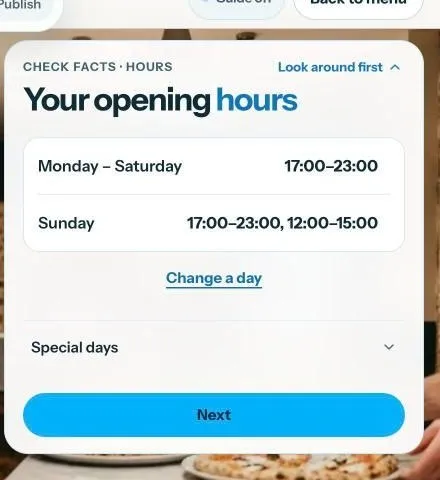
Recorded screen · invented example business. Normal-week check only; no saved holiday appears here. Photos: AI illustrations. Step 2
Add the holiday dates
Open “Special days” and choose “Add a special day”. Set the date or date range as closed or give different hours. Add a guest note if helpful. Check the time zone if asked. Your normal week stays saved.
Pizzeria Nonna Lia, München Illustration · invented example business.
Business → Business info & hours
Your opening hours
- Monday–Saturday
- 17:00–23:00
Choose days and Opens/Closes. Keep split lunch and dinner times where needed.
Change a dayAdd a second timeBusiness info & hours → Add a special day
Special days
- Date range
- 24–26 December
- Closed
- Yes
- Note for guests
- Weihnachten mit der Familie
The normal week stays saved. Check the timezone if asked.
Save changesBusiness info & hours
Opening hours
Saved · Not online yet
- 24–26 December
- Closed · Weihnachten mit der Familie
Tap “Update website” when the dates are right.
Update websiteUndoTry the steps to see what happens.
Illustration · invented example business. Use specific special dates while keeping your usual week. Step 3
Save and check
Read the saved dates and use “Undo” if wrong. Asking in chat instead? Read the date on the proposed hours change before confirming. One Sunday should not change every Sunday.
Pizzeria Nonna Lia, München Illustration · invented example business.
Business → Business info & hours
Your opening hours
- Monday–Saturday
- 17:00–23:00
Choose days and Opens/Closes. Keep split lunch and dinner times where needed.
Change a dayAdd a second timeBusiness info & hours → Add a special day
Special days
- Date range
- 24–26 December
- Closed
- Yes
- Note for guests
- Weihnachten mit der Familie
The normal week stays saved. Check the timezone if asked.
Save changesBusiness info & hours
Opening hours
Saved · Not online yet
- 24–26 December
- Closed · Weihnachten mit der Familie
Tap “Update website” when the dates are right.
Update websiteUndoTry the steps to see what happens.
Illustration · invented example business. Read the saved closure before updating; Undo can correct it. Step 4
Update your website
Tap “Update website”. Open the website address and check the holiday dates and usual week.
Pizzeria Nonna Lia, München Illustration · invented example business.
After Update website → open the public website
Holiday hours for guests
- 24–26 December
- Closed
- Usual week
- Check the regular hours separately
Check the actual published page on your phone.
Open websiteAfter Update website → open the public website
Holiday hours for guests
- 24–26 December
- Closed
- Usual week
- Check the regular hours separately
Check the actual published page on your phone.
Open websiteAfter Update website → open the public website
Holiday hours for guests
- 24–26 December
- Closed
- Usual week
- Check the regular hours separately
Check the actual published page on your phone.
Open websiteExample only. Follow the step in your own business.
Illustration · invented example business. Check the published special dates and the usual week. Step 5
Change Google Maps too
Open the listing you manage and enter the same special dates and hours. Save and check what guests see. Someone else manages it? Send them the exact dates and check together afterwards.
Illustration · invented example business. Update and check your Google Maps listing yourself.
Check what guests see
Open your website and Google Maps listing on your phone. Check that dates and times agree. If you take table requests, check that closed dates cannot be requested. Saved special-day closures restrict dated requests. Ordinary request hours have their own settings.
If something needs attention
- Google Maps still shows old hours. Change the listing yourself. HuskIT does not update its hours.
- You changed the normal week by mistake. Correct it and use special dates for the holiday.
- You want a new week to start later. Future weekly timetables are not supported. Use specific dates for exceptions, then change the week when needed.
- You cannot manage the listing. Ask whoever manages it to change the dates. Check the result with them.
- Search still shows old details. Check the website and listing directly. HuskIT cannot promise when search engines or AI answers will pick up changes.