
Draft · not published
Edit on the page
See a wrong word on your site? Tap it and fix it.
Open your website in “Edit”, tap a heading or photo and change it where it is. Save, then press “Update website” for guests.
- Free while in beta
- You check it before guests see it
- Change it, or go back to a saved version
HuskIT prepares it. You have the final say.
Online
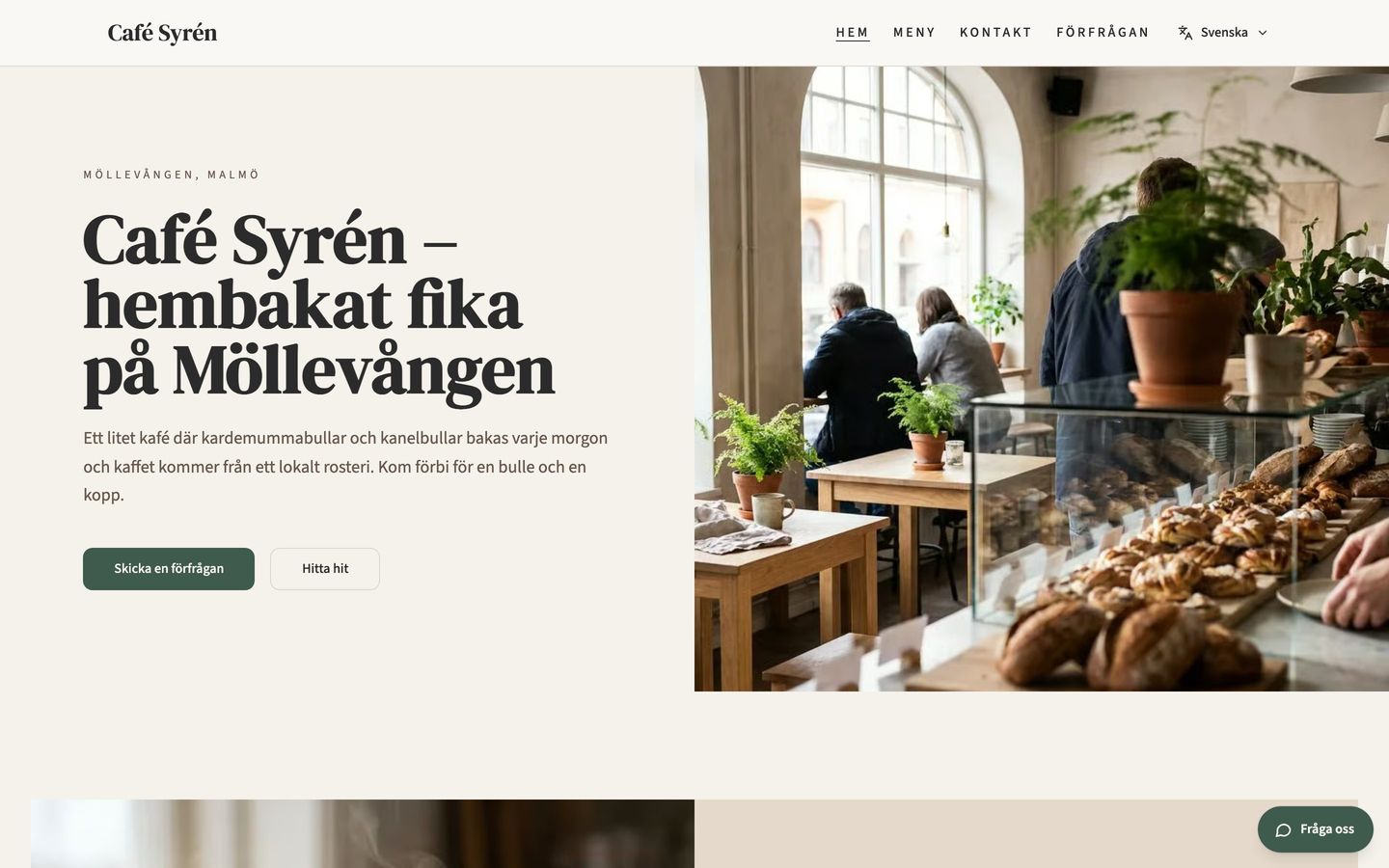
Café Syrén
Kaffe & nybakat varje dag
In short. Tap a heading, photo or section to change its words, size or colour. Saving keeps a version; guests see it only when you press “Update website”. You have the final say.
Questions owners ask about edit on the page
Where do I start editing a heading on the page?
Open your website and choose “Edit”. Tap a heading. Type new words, or change size and colour.
Can I choose a different top photo?
Yes. Tap the top of your homepage and choose a photo, slideshow or video. Use your own photos or upload one. A video is linked, not copied.
What happens if I leave with an unsaved change?
Choose to save, discard or keep editing. Saving keeps a version but does not put it online. Press “Update website” when guests should see it.
Can I ask HuskIT to change the selected part?
Yes. Choose “Ask HuskIT about this” and say what you want, like shorter words. Supported sections can also be moved up or down.
It does
- Edits supported words, photos and sections in place.
It does not
- Offer every control on every part of an older or changed page.
Checked against the HuskIT product on 12 November 2026 by the HuskIT product team. Example businesses are invented; their photos are AI illustrations.
See yours before you decide.
Prepare your website, review it and publish when you’re ready. Free while in beta.
Get your free website preview We’ll tell you before anything costs money.