
Mark today's dish sold out from your phone
Mark the dish unavailable, wait for it to save and ask the owner to update the website guests see. Switch it back when it returns.
Updated on
The last dish is gone. Open it and turn on “Sold out”. Wait for it to save, then ask the owner to update the website for guests.
For Thu, a shift lead with Member access. See Menu & services and Staff access.
Before you start
Use your own team account and check the exact dish name. Agree which owner will put the change online.
Mark the dish
Step 1
Join with your own account
The owner opens “Team” under “Business”, then chooses “Invite someone”. They enter your email and send the invitation. Follow the email link, sign in and accept.
Pizzeria Nonna Lia, München Illustration · invented example business.
Business → Team
Invite someone
- Invitee email
- thu@demo.invalid
Check whether the invitation email went out. Thu follows its link and joins with her own account.
Thu · Member · Menu
Margherita
Saved · Not online yet
- Sold out
- On
- Show on website
- On
Thu can change availability here. Owners change prices, words and photos.
Owner · Today
Changes not online yet
- Margherita
- Sold out
The owner reviews and publishes the saved availability change.
Try the steps to see what happens.
Illustration · invented example business. The invitation starts in Business → Team; join with your own account. Step 2
Find the right dish
Open “Menu” on your phone. Open the item and check its name.
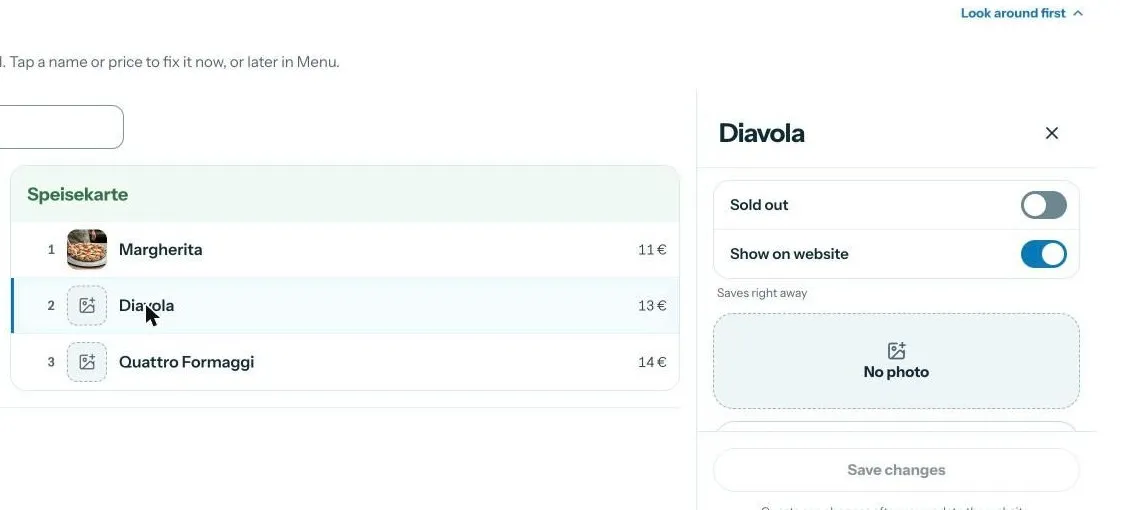
Recorded screen · invented example business. Select the exact dish; this capture does not prove Member access. Photos: AI illustrations. Step 3
Turn on “Sold out”
The switch saves immediately. Keep “Show on website” on to show the dish as unavailable. Turning it off hides the dish instead.
Pizzeria Nonna Lia, München Illustration · invented example business.
Menu → item
Diavola
- Sold out
- On
- Show on website
- On
Availability saves immediately. Wait for the saved result.
UndoMenu → item
Diavola
- Sold out
- On
- Show on website
- On
Availability saves immediately. Wait for the saved result.
UndoMenu → item
Diavola
- Sold out
- On
- Show on website
- On
Availability saves immediately. Wait for the saved result.
UndoExample only. Follow the step in your own business.
Illustration · invented example business. Keep Show on website on to show the unavailable dish. Step 4
Check it saved
Wait for saving to finish. Use “Undo” if you chose the wrong dish. Ask the owner to review the menu and tap “Update website”.
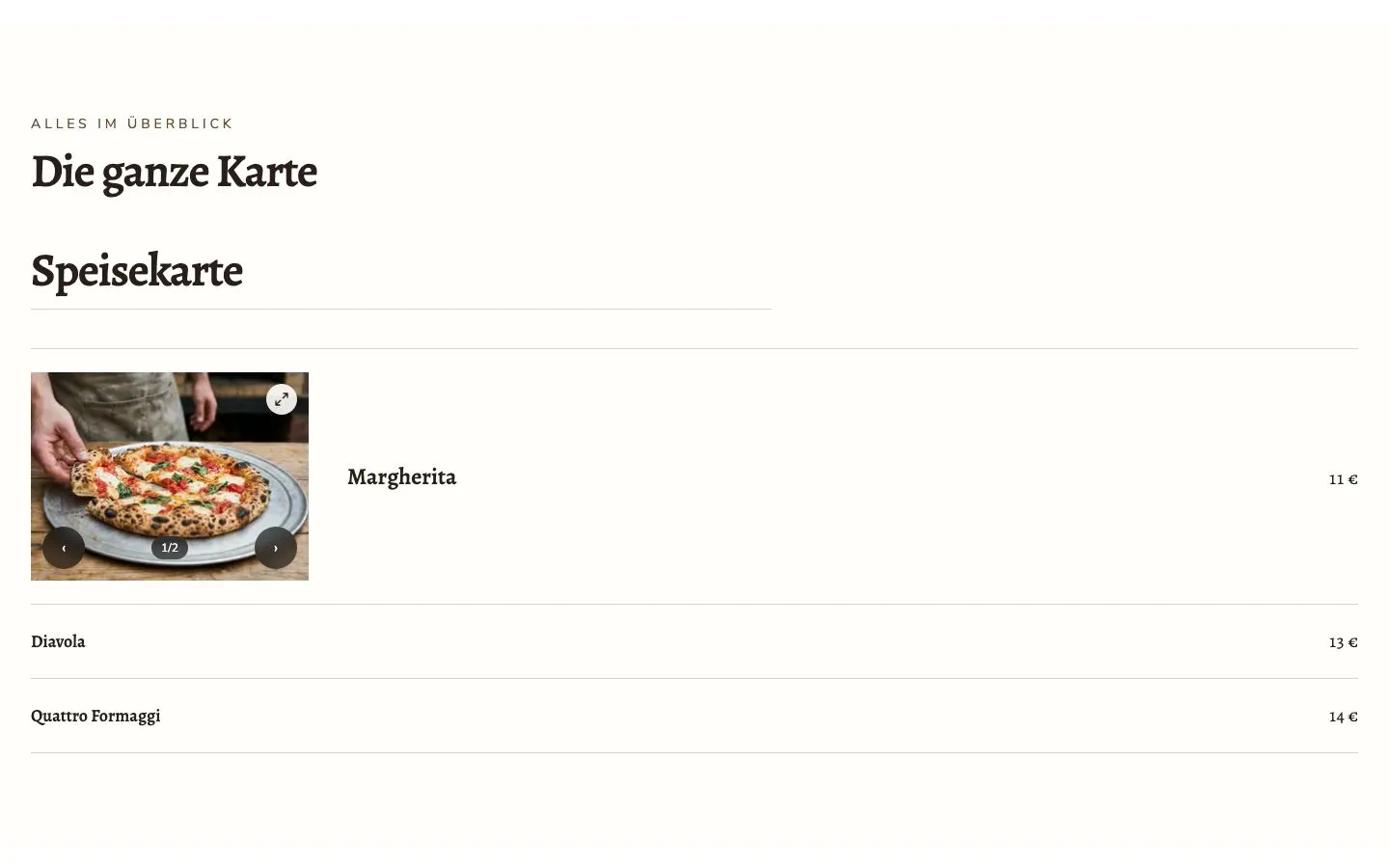
Recorded screen · invented example business. Guest menu example: the sold-out label appears here after the owner updates the website. Photos: AI illustrations. Step 5
Bring it back when available
Turn “Sold out” off, wait for saving and ask the owner to update again.
Pizzeria Nonna Lia, München Illustration · invented example business.
Menu → item
Diavola returns
Saved · Not online yet
- Sold out
- Off
- Show on website
- On
Ask the owner to Update website again.
UndoMenu → item
Diavola returns
Saved · Not online yet
- Sold out
- Off
- Show on website
- On
Ask the owner to Update website again.
UndoMenu → item
Diavola returns
Saved · Not online yet
- Sold out
- Off
- Show on website
- On
Ask the owner to Update website again.
UndoExample only. Follow the step in your own business.
Illustration · invented example business. Switch availability back yourself, then ask for another website update.
Check what guests see
After the owner updates the website, open the menu on your phone. Check the right dish has its sold-out label, or is hidden if you chose that. Check again after bringing it back.
If something needs attention
- It still says “Saving…”. Wait for the result before telling the owner it is done.
- Guests see the old menu. Ask the owner to update the website. Saved sold-out items can already be refused in new chat orders.
- You cannot change prices or publish. Those need an owner. Members handle availability and permitted guest decisions.
- Your invitation is missing. Ask the owner to check pending invitations and email problems, then resend if needed.
- The dish is still sold out tomorrow. Switch it back yourself. Saying “for today” does not set a reset. HuskIT does not count stock or reset it overnight.