
Turn a cake photo into a post for your connected accounts
Choose your real photo, review the caption and accounts, then approve when the post should go out. Check each account result.
Updated on
Choose your cake photo and let HuskIT write a caption. Check the words, accounts and time. Approve the post when ready, then check each account after it goes out.
For Sofie, a café owner who already posts. See Social posts.
Before you start
Have a real photo and the facts you want to share. You need access to the social accounts you manage. Voice works in English, Swedish, German and Vietnamese; other owners type.
Prepare and approve your post
Step 1
Start with the cake
Open “Social posts”. Choose your photo or write an idea, then tap “Write caption”. Check the cake, price and availability are right.
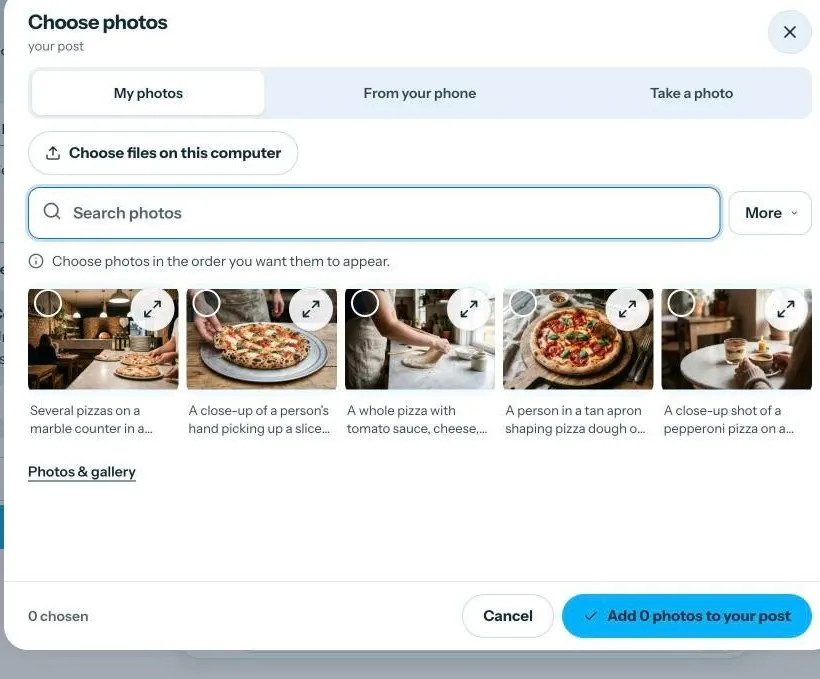
Recorded screen · invented example business. This is the post picker; choose your own cake photo. Photos: AI illustrations. Step 2
Connect your accounts
Choose the right page or location and tap “Use for this business”. You can save your draft before connecting. You need a connection to post or schedule it.
Illustration · invented example business. Choose the right connected accounts for the cake post. Step 3
Read each preview
Check the accounts, photos and caption for each one. Make the words sound like you. Remove accounts you do not want to use.
Illustration · invented example business. Read and revise the cake caption before approving it. Step 4
Choose when it goes out
Post now, choose a date and time or use your next weekly posting time. Check the business time zone. Read the accounts listed on the approval button before tapping. Approved scheduled posts run later without another click.
Illustration · invented example business. Check accounts, date, time and business time zone before approval. Step 5
Check each result
Look at each account after the posting time. A post may work on one and fail on another. Reconnect or retry where offered, after checking what already went out.
Illustration · invented example business. Scheduled is not published; check each account after the posting time.
Check what guests see
Open each account at the approved time. Check the photo and words appear on the right page. A scheduled post still needs to go out. Updating your website is separate.
If something needs attention
- No account is connected. Save the draft, then connect the right account before posting.
- Only some posts worked. Check each result before trying again, so you do not repeat a successful post.
- You edit a scheduled post. Review and approve the new version. The old schedule stays until replaced or cancelled.
- A format is unavailable. Use that account’s offered formats. Connecting does not unlock every format.