
Change a lunch price in your own language, then check what guests see
Say the new price, check the item and amount, then update the website. Read the menu guests see before you finish.
Updated on
Tell HuskIT the new lunch price in your own language. Check the dish and both amounts, then confirm. Update your website and read the price guests see.
For Minh, a family restaurant owner. See Edit by chat or voice and Menu & services.
Before you start
You need Owner access, a saved dish and its new price. Voice works in English, Swedish, German and Vietnamese; other owners type.
Example sentence (Vietnamese): “Đổi giá Margherita thành 11,50 €.” It means “Change the Margherita price to €11.50.” Use your own dish and amount.
Change the price
Step 1
Name the dish and new price
Use the ask bar on your business screens. Type in your own language or use the microphone if supported. Check the words it heard, especially the name, amount and currency.
Illustration · invented example business. Name the dish, amount and currency; check any voice transcription. Step 2
Check the price card
Read the dish and old and new amounts. Tap “Change” to correct them. Discard the proposed change if you no longer want it.
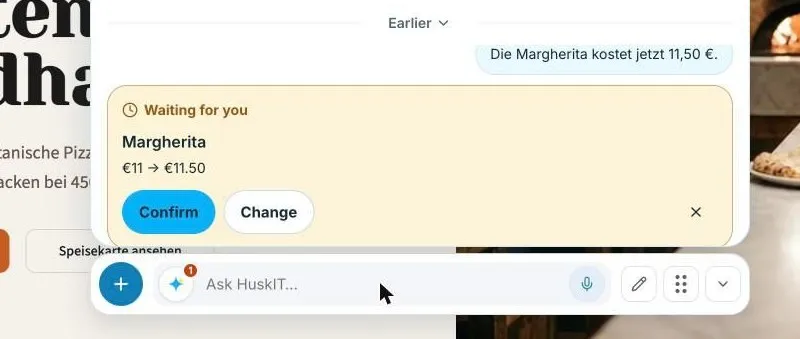
Recorded screen · invented example business. Typed price request with both amounts before confirmation. Photos: AI illustrations. Step 3
Confirm and check the saved item
Tap “Confirm” and wait for the result. Open “Menu” to read the saved price. Guests still see the previous price until you update the website.
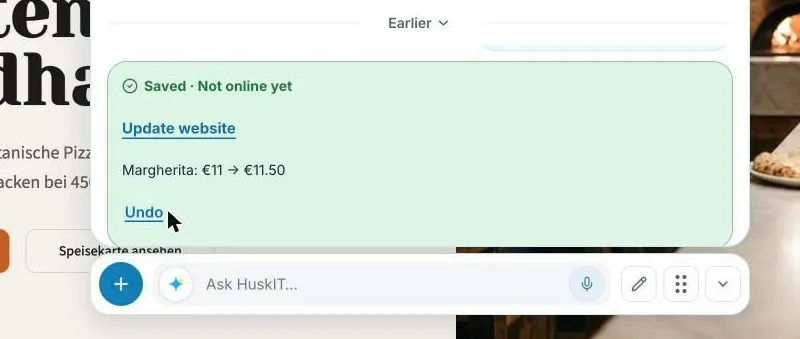
Recorded screen · invented example business. The saved price still needs Update website. Photos: AI illustrations. Step 4
Read the guest languages
Check the menu in each language your guests use. Shared prices should agree. Use “Undo” if the saved change is wrong and the button is available.
Pizzeria Nonna Lia, München Illustration · invented example business.
Website → language choice
Check each guest language
- Margherita · main language
- 11,50 €
- Margherita · translated page
- €11.50
Shared amounts agree; the display follows each language.
UndoUpdate websiteWebsite → language choice
Check each guest language
- Margherita · main language
- 11,50 €
- Margherita · translated page
- €11.50
Shared amounts agree; the display follows each language.
UndoUpdate websiteWebsite → language choice
Check each guest language
- Margherita · main language
- 11,50 €
- Margherita · translated page
- €11.50
Shared amounts agree; the display follows each language.
UndoUpdate websiteExample only. Follow the step in your own business.
Illustration · invented example business. Read the same dish in each guest language. Step 5
Put it online
Tap “Update website”. Open your menu at the address guests use and check the amount and currency again.
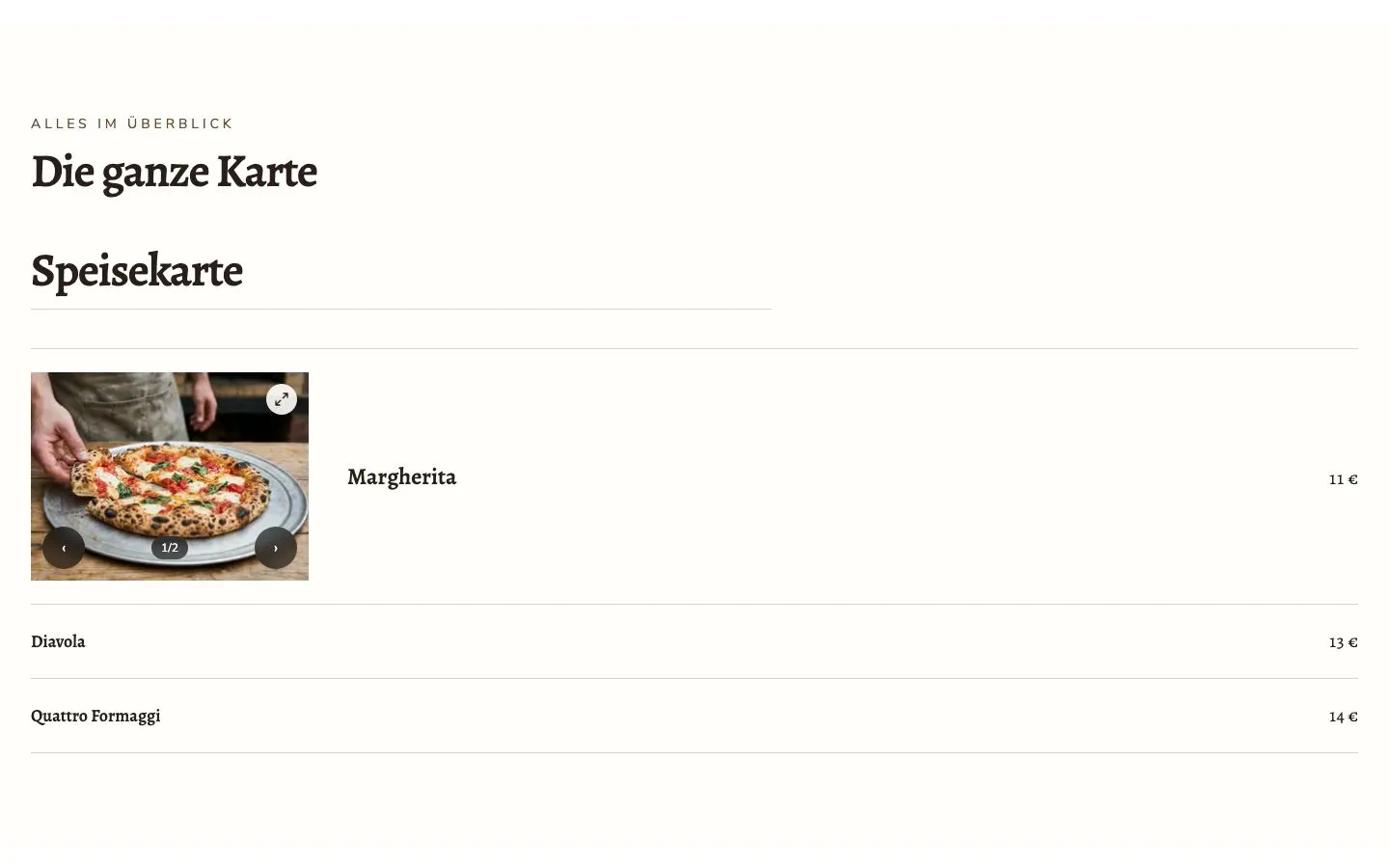
Recorded screen · invented example business. Guest menu example before the new price goes online. Photos: AI illustrations.
Check what guests see
Open the website address on your phone. Read the dish in each guest language. Check the menu itself as well as the saved result.
If something needs attention
- A spoken number is wrong. Correct it before applying the change.
- HuskIT needs a detail. Answer its question or use “Point at it”. Select the dish, then tap “Send answer”.
- You have Member access. Ask the owner. Members can change availability, while owners change prices and publish.
- Guests still see the old price. Check the saved item, update the website and open the menu again.
- Undo is unavailable. Open “Saved versions”. Restoring brings back that whole website, so check other changes too.