
No website or Google listing? Start with photos and a few words
Start from your own photos, a document or a short description. Check what HuskIT understood before it prepares your website.
Updated on
You can start without a website or Google Maps listing. Share photos or a document, or say what you do. Check what HuskIT understood before it prepares your website.
For Sofie, a café owner, and Aino, a salon owner. See Start without a website.
Before you start
Have your business name, what you do and a working phone number, email or profile link. Photos and hours can wait. You need an account and access to its confirmation email if asked.
Voice works in English, Swedish, German and Vietnamese; other owners type.
Prepare your first preview
Step 1
Create your account
Enter the business name and address on the homepage. Continue to your account, or sign in. Confirm your email if asked. If no business listing fits, choose to start from your own details.
Café Syrén, Malmö Illustration · invented example business.
Homepage → your account
Create your account
- Business name
- Café Syrén
- Business address
- Malmö · example address
Confirm your email if asked, then check the business match.
Create accountContinue with GoogleSign inHomepage → your account
Create your account
- Business name
- Café Syrén
- Business address
- Malmö · example address
Confirm your email if asked, then check the business match.
Create accountContinue with GoogleSign inHomepage → your account
Create your account
- Business name
- Café Syrén
- Business address
- Malmö · example address
Confirm your email if asked, then check the business match.
Create accountContinue with GoogleSign inExample only. Follow the step in your own business.
Illustration · invented example business. After account checks, use your own details if no listing fits. Step 2
Show what you have
Choose photos, a menu or other files and links. You can choose several. To use words alone, choose “Nothing yet”, then “Next”. You can also choose “Tell me instead”. Choosing nothing clears other choices.
Café Syrén, Malmö Illustration · invented example business.
Create your account first. Confirm your email if asked.
What have you got?
Choose several things you have, or “Nothing yet”. Use “My Google listing” to search again.
What do you do, and for who?
Type, or speak in English, Swedish, German or Vietnamese in the app.
Add your material
In the app, add your chosen files, photos or links. This demo uses Café Syrén’s example menu; it does not read your files or profiles.
- Example menu
- Helgbrunch · 245 kr · lördag och söndag 9–14
- Example photo
- Buns at Café Syrén · AI illustration
Is this your place?
Café Syrén · Malmö
Example search result. Listed businesses go straight to preparation after confirmation.
Here's what I found
Vi är Café Syrén i Malmö. Vi bakar kardemummabullar och serverar helgbrunch för våra grannar.
Example menu · Helgbrunch · 245 kr · lördag och söndag 9–14. Check names, prices and the read-back before accepting.
Is this right?
What kind of business is it?
Your business basics
Opening hours (optional) · Leave hours out
Your details so far
- Name
- Café Syrén
- What you do
- Vi är Café Syrén i Malmö. Vi bakar kardemummabullar och serverar helgbrunch för våra grannar.
- Where
- Malmö, Sverige · example address
- Contact
- hej@syren.demo.invalid
You can choose a website you like before preparing yours.
Your website is ready
Not online yet
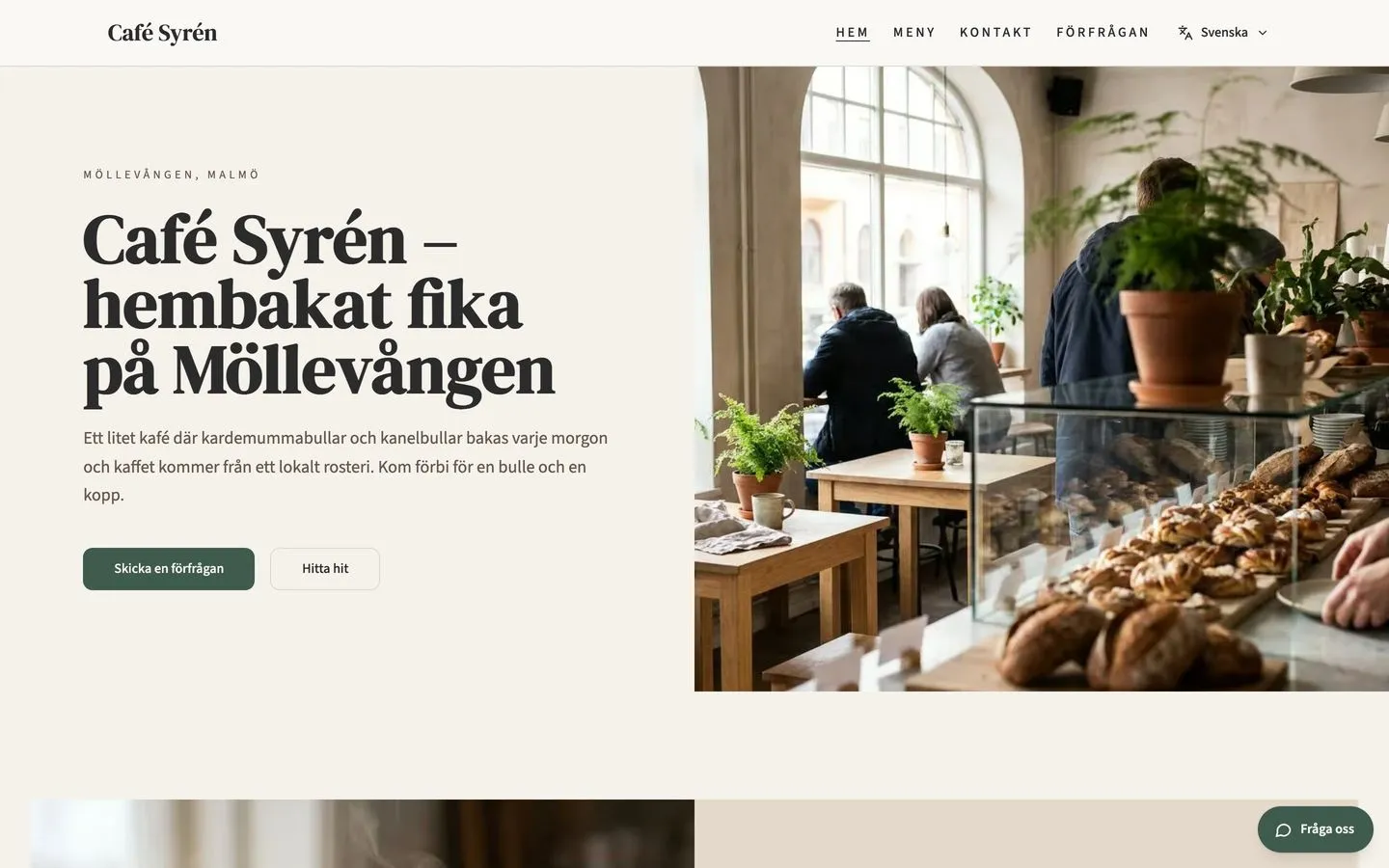
Look around first. Check your menu, hours, contact and look.
Put your website online
- Pages
- Homepage · Menu · Contact
- Languages
- Swedish
- Address
- Check your included address in the app.
Read the advice and tap “Fix” where needed before publishing.
After publishing in the app, you will see “You are online.” This example stays here.
Create your account first. Add a working contact before preparing your website.
Illustration · invented example business. Choose your material, or Nothing yet to start with words. Step 3
Check what HuskIT understood
Add your files or photos and check the details it finds. Starting with words? Tell HuskIT what you do and who you serve. Correct anything wrong, then confirm your business type when asked.
Café Syrén, Malmö Illustration · invented example business.
Create your account first. Confirm your email if asked.
What have you got?
Choose several things you have, or “Nothing yet”. Use “My Google listing” to search again.
What do you do, and for who?
Type, or speak in English, Swedish, German or Vietnamese in the app.
Add your material
In the app, add your chosen files, photos or links. This demo uses Café Syrén’s example menu; it does not read your files or profiles.
- Example menu
- Helgbrunch · 245 kr · lördag och söndag 9–14
- Example photo
- Buns at Café Syrén · AI illustration
Is this your place?
Café Syrén · Malmö
Example search result. Listed businesses go straight to preparation after confirmation.
Here's what I found
Vi är Café Syrén i Malmö. Vi bakar kardemummabullar och serverar helgbrunch för våra grannar.
Example menu · Helgbrunch · 245 kr · lördag och söndag 9–14. Check names, prices and the read-back before accepting.
Is this right?
What kind of business is it?
Your business basics
Opening hours (optional) · Leave hours out
Your details so far
- Name
- Café Syrén
- What you do
- Vi är Café Syrén i Malmö. Vi bakar kardemummabullar och serverar helgbrunch för våra grannar.
- Where
- Malmö, Sverige · example address
- Contact
- hej@syren.demo.invalid
You can choose a website you like before preparing yours.
Your website is ready
Not online yet
Look around first. Check your menu, hours, contact and look.
Put your website online
- Pages
- Homepage · Menu · Contact
- Languages
- Swedish
- Address
- Check your included address in the app.
Read the advice and tap “Fix” where needed before publishing.
After publishing in the app, you will see “You are online.” This example stays here.
Create your account first. Add a working contact before preparing your website.
Illustration · invented example business. Read back the understood facts before confirming the business type. Step 4
Check your basic details
Add your name and a working contact. Check the address or choose “I work from home or travel”. Hours are optional. Answer any missing questions. When using files or links, you may be asked what people should do first.
Café Syrén, Malmö Illustration · invented example business.
Create your account first. Confirm your email if asked.
What have you got?
Choose several things you have, or “Nothing yet”. Use “My Google listing” to search again.
What do you do, and for who?
Type, or speak in English, Swedish, German or Vietnamese in the app.
Add your material
In the app, add your chosen files, photos or links. This demo uses Café Syrén’s example menu; it does not read your files or profiles.
- Example menu
- Helgbrunch · 245 kr · lördag och söndag 9–14
- Example photo
- Buns at Café Syrén · AI illustration
Is this your place?
Café Syrén · Malmö
Example search result. Listed businesses go straight to preparation after confirmation.
Here's what I found
Vi är Café Syrén i Malmö. Vi bakar kardemummabullar och serverar helgbrunch för våra grannar.
Example menu · Helgbrunch · 245 kr · lördag och söndag 9–14. Check names, prices and the read-back before accepting.
Is this right?
What kind of business is it?
Your business basics
Opening hours (optional) · Leave hours out
Your details so far
- Name
- Café Syrén
- What you do
- Vi är Café Syrén i Malmö. Vi bakar kardemummabullar och serverar helgbrunch för våra grannar.
- Where
- Malmö, Sverige · example address
- Contact
- hej@syren.demo.invalid
You can choose a website you like before preparing yours.
Your website is ready
Not online yet
Look around first. Check your menu, hours, contact and look.
Put your website online
- Pages
- Homepage · Menu · Contact
- Languages
- Swedish
- Address
- Check your included address in the app.
Read the advice and tap “Fix” where needed before publishing.
After publishing in the app, you will see “You are online.” This example stays here.
Create your account first. Add a working contact before preparing your website.
Illustration · invented example business. Add a usable contact; hours can wait. Step 5
Review and prepare
Check the summary and reopen anything wrong or missing. You can choose a website you like as design inspiration. Tap “Prepare my website” when ready.
Café Syrén, Malmö Illustration · invented example business.
Create your account first. Confirm your email if asked.
What have you got?
Choose several things you have, or “Nothing yet”. Use “My Google listing” to search again.
What do you do, and for who?
Type, or speak in English, Swedish, German or Vietnamese in the app.
Add your material
In the app, add your chosen files, photos or links. This demo uses Café Syrén’s example menu; it does not read your files or profiles.
- Example menu
- Helgbrunch · 245 kr · lördag och söndag 9–14
- Example photo
- Buns at Café Syrén · AI illustration
Is this your place?
Café Syrén · Malmö
Example search result. Listed businesses go straight to preparation after confirmation.
Here's what I found
Vi är Café Syrén i Malmö. Vi bakar kardemummabullar och serverar helgbrunch för våra grannar.
Example menu · Helgbrunch · 245 kr · lördag och söndag 9–14. Check names, prices and the read-back before accepting.
Is this right?
What kind of business is it?
Your business basics
Opening hours (optional) · Leave hours out
Your details so far
- Name
- Café Syrén
- What you do
- Vi är Café Syrén i Malmö. Vi bakar kardemummabullar och serverar helgbrunch för våra grannar.
- Where
- Malmö, Sverige · example address
- Contact
- hej@syren.demo.invalid
You can choose a website you like before preparing yours.
Your website is ready
Not online yet
Look around first. Check your menu, hours, contact and look.
Put your website online
- Pages
- Homepage · Menu · Contact
- Languages
- Swedish
- Address
- Check your included address in the app.
Read the advice and tap “Fix” where needed before publishing.
After publishing in the app, you will see “You are online.” This example stays here.
Create your account first. Add a working contact before preparing your website.
Illustration · invented example business. Review the summary before Prepare my website. Step 6
Check before going online
Read the first preview. Check your menu or services, hours, contact and look. Review the pages, languages, address and any advice before publishing. Open your website afterwards.
Café Syrén, Malmö Illustration · invented example business.
Create your account first. Confirm your email if asked.
What have you got?
Choose several things you have, or “Nothing yet”. Use “My Google listing” to search again.
What do you do, and for who?
Type, or speak in English, Swedish, German or Vietnamese in the app.
Add your material
In the app, add your chosen files, photos or links. This demo uses Café Syrén’s example menu; it does not read your files or profiles.
- Example menu
- Helgbrunch · 245 kr · lördag och söndag 9–14
- Example photo
- Buns at Café Syrén · AI illustration
Is this your place?
Café Syrén · Malmö
Example search result. Listed businesses go straight to preparation after confirmation.
Here's what I found
Vi är Café Syrén i Malmö. Vi bakar kardemummabullar och serverar helgbrunch för våra grannar.
Example menu · Helgbrunch · 245 kr · lördag och söndag 9–14. Check names, prices and the read-back before accepting.
Is this right?
What kind of business is it?
Your business basics
Opening hours (optional) · Leave hours out
Your details so far
- Name
- Café Syrén
- What you do
- Vi är Café Syrén i Malmö. Vi bakar kardemummabullar och serverar helgbrunch för våra grannar.
- Where
- Malmö, Sverige · example address
- Contact
- hej@syren.demo.invalid
You can choose a website you like before preparing yours.
Your website is ready
Not online yet
Look around first. Check your menu, hours, contact and look.
Put your website online
- Pages
- Homepage · Menu · Contact
- Languages
- Swedish
- Address
- Check your included address in the app.
Read the advice and tap “Fix” where needed before publishing.
After publishing in the app, you will see “You are online.” This example stays here.
Create your account first. Add a working contact before preparing your website.
Illustration · invented example business. Check the preview and publication review before going online.
Check what guests see
Open the website address on your phone. Check the photos and words describe your business. Test your phone, email or profile link.
If something needs attention
- A file cannot be read. Try again or tell HuskIT in words. Do not accept an empty list if details are missing.
- Your contact is missing. Add one before preparing. A name and photos are not enough.
- You shared a social link. Check what HuskIT found and add anything missing. Sharing does not mean every post was read or connect the account for posting.
- You have no photos or hours. Leave them out. Check that the preview has not invented them.