
Your first website: check the menu, hours and photos before going online
Check your real dishes, opening hours, contact details and photos. Put the website online when you are ready.
Updated on
Get your first website ready for guests. HuskIT prepares the pages; you check the menu, hours, contact details and photos. Put it online when they are right.
For Minh, a family restaurant owner. See Website.
Before you start
Have your business name, address, current menu and hours. You need access to your email. Keep your own photos ready if you want to change pictures.
Check and publish
Step 1
Start with your business
Enter its name and address on the homepage. Create your account, continue with Google or sign in. Open the confirmation email if asked.
Café Syrén, Malmö Illustration · invented example business.
Homepage → your account
Create your account
- Business name
- Café Syrén
- Business address
- Malmö · example address
Confirm your email if asked, then check the business match.
Create accountContinue with GoogleSign inHomepage → your account
Create your account
- Business name
- Café Syrén
- Business address
- Malmö · example address
Confirm your email if asked, then check the business match.
Create accountContinue with GoogleSign inHomepage → your account
Create your account
- Business name
- Café Syrén
- Business address
- Malmö · example address
Confirm your email if asked, then check the business match.
Create accountContinue with GoogleSign inExample only. Follow the step in your own business.
Illustration · invented example business. Create or sign in to your account before checking the match. Step 2
Check the business HuskIT found
Read the name and address. Choose “Not my business” if wrong, or “Yes, prepare my website” if right. No match? Start with your own details.
Café Syrén, Malmö Illustration · invented example business.
Business search
Is this your place?
- Name
- Café Syrén
- Address
- Malmö · example address
Not my businessYes, prepare my websiteBusiness search
Is this your place?
- Name
- Café Syrén
- Address
- Malmö · example address
Not my businessYes, prepare my websiteBusiness search
Is this your place?
- Name
- Café Syrén
- Address
- Malmö · example address
Not my businessYes, prepare my websiteExample only. Follow the step in your own business.
Illustration · invented example business. Check the name and address before preparing. Step 3
Look around your first preview
Wait for your website to be ready, then read the pages on phone and laptop previews. Guests will see it after publishing.
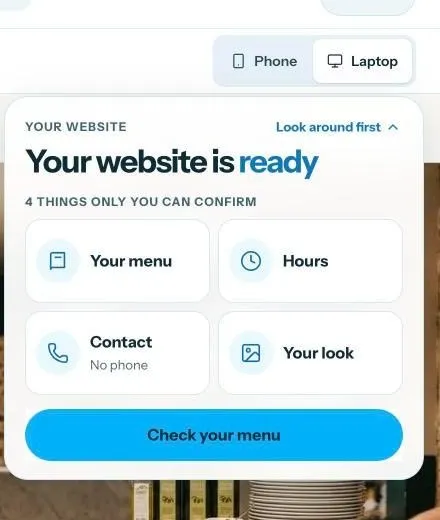
Recorded screen · invented example business. First preview checks; contact details are still missing. Photos: AI illustrations. Step 4
Check the facts
Open “Menu” and check every name and price. Open a dish to correct it and save changes. Open business details under “Business” for hours and contact information. Include holiday closures in your checks.
Pizzeria Nonna Lia, München Illustration · invented example business.
Menu · Business → Business info & hours
Check your facts
- Margherita
- 11,50 €
- Opening hours
- Check the usual week and special days
- Contact
- Use your real phone and email
Save changesMenu · Business → Business info & hours
Check your facts
- Margherita
- 11,50 €
- Opening hours
- Check the usual week and special days
- Contact
- Use your real phone and email
Save changesMenu · Business → Business info & hours
Check your facts
- Margherita
- 11,50 €
- Opening hours
- Check the usual week and special days
- Contact
- Use your real phone and email
Save changesExample only. Follow the step in your own business.
Illustration · invented example business. Check each item and your business details in their own screens. Step 5
Check photos and languages
Open “Website” and choose “Edit”. Tap the top photo and choose from your photos or upload one. Check it on the page and save. Open “Languages” under “Business” to add a language if needed. Wait for translation, then ask a fluent reader to check the pages.
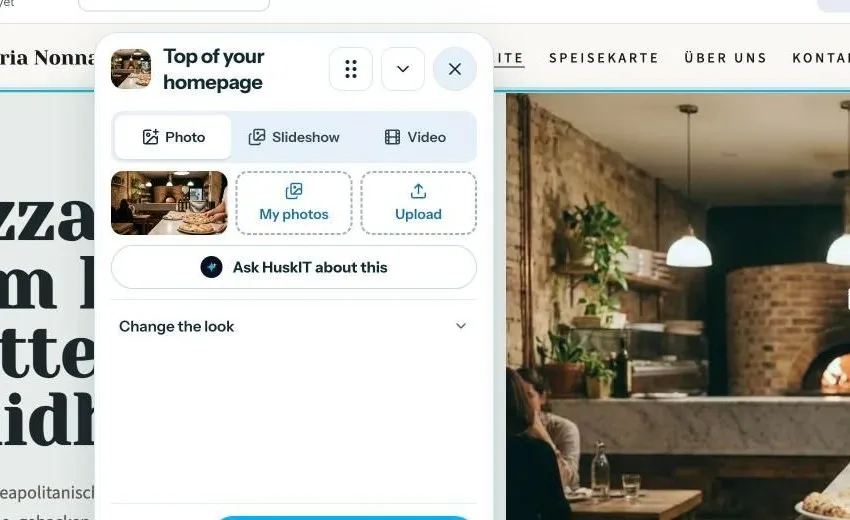
Recorded screen · invented example business. Point & Edit photo controls; check the page draft and save. Photos: AI illustrations. Step 6
Put it online
Review your pages, languages, address and advice. Follow any “Fix” links. Tap “Put my website online” when ready, then open your website. Later saved changes use “Update website”.
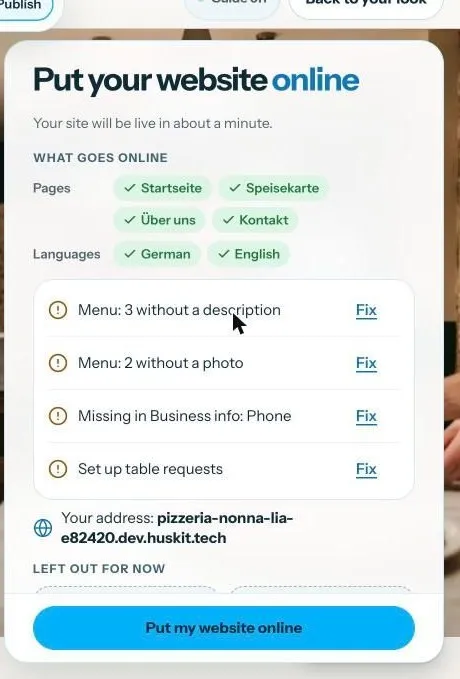
Recorded screen · invented example business. Review before publishing; this website is not online yet. Photos: AI illustrations.
Check what guests see
Open the website address on your phone. Read the menu and hours in each language. Check the photos and test the contact or booking link. Request forms need their own settings before accepting requests.
If something needs attention
- The wrong business appears. Go back and choose the right one before preparing.
- The email is missing. Ask for the link again or use another email on the confirmation screen.
- Your photo is only in the library. Select it for the page, check the result and save.
- A change went wrong. Use “Undo” while available. Otherwise preview an earlier website in “Saved versions” and restore it. Check the whole website before updating.
- A translation sounds wrong. Ask a fluent reader. For item words, choose the language and “Only change this language”. Shared prices stay together.